
This article covers how to configure direct deposits for employees in Staffwizard. Please follow the steps below:
Location: Available Employees>Employee Profile>Payroll>Direct Deposit
Locating the Employee's Profile:
- On the main menu on the left-hand side of the StaffWizard page, under the 'Employees' tab, navigate to "Available Employees"
- You can Search for the employee or use the Filter yellow button on the top of the employee's list.
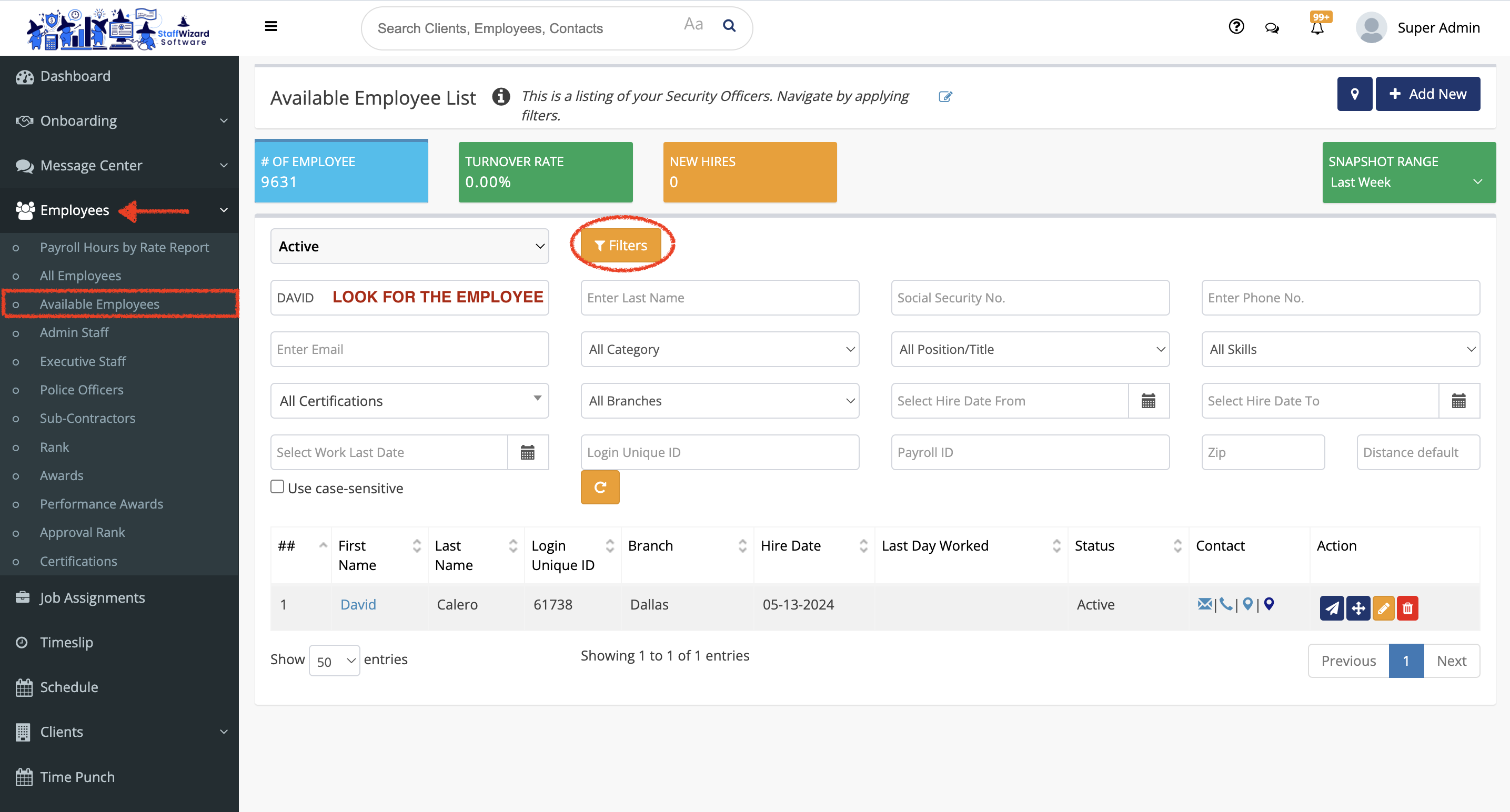
- Once you have the employee identified, double-click on the name to open up their profile.
- Navigate through the tabs that are on the top of the employee's profile and under 'Payroll', click on the "Direct Deposit" tab.
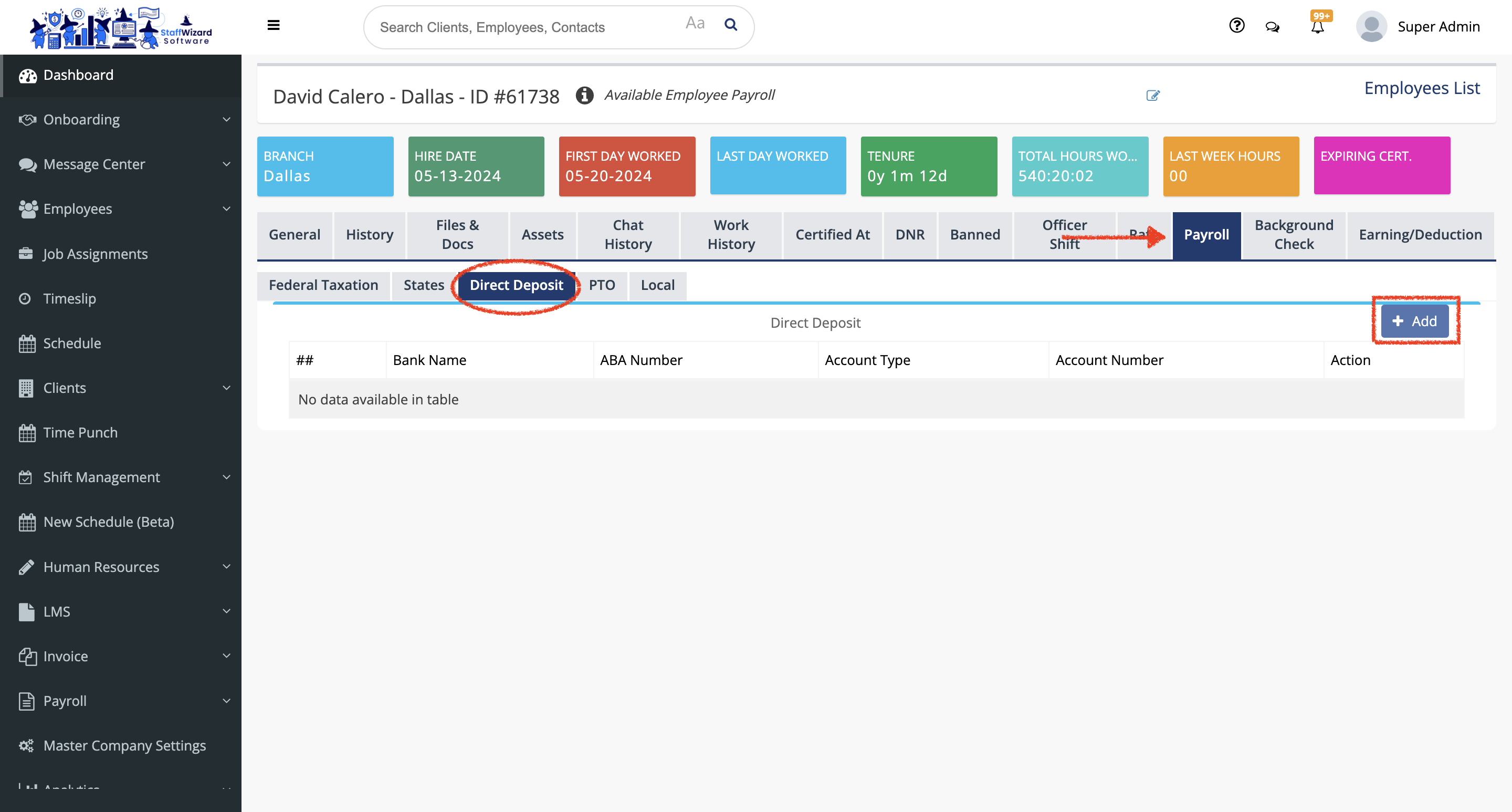
- On the right hand side, you will see a button to add information [+ add].
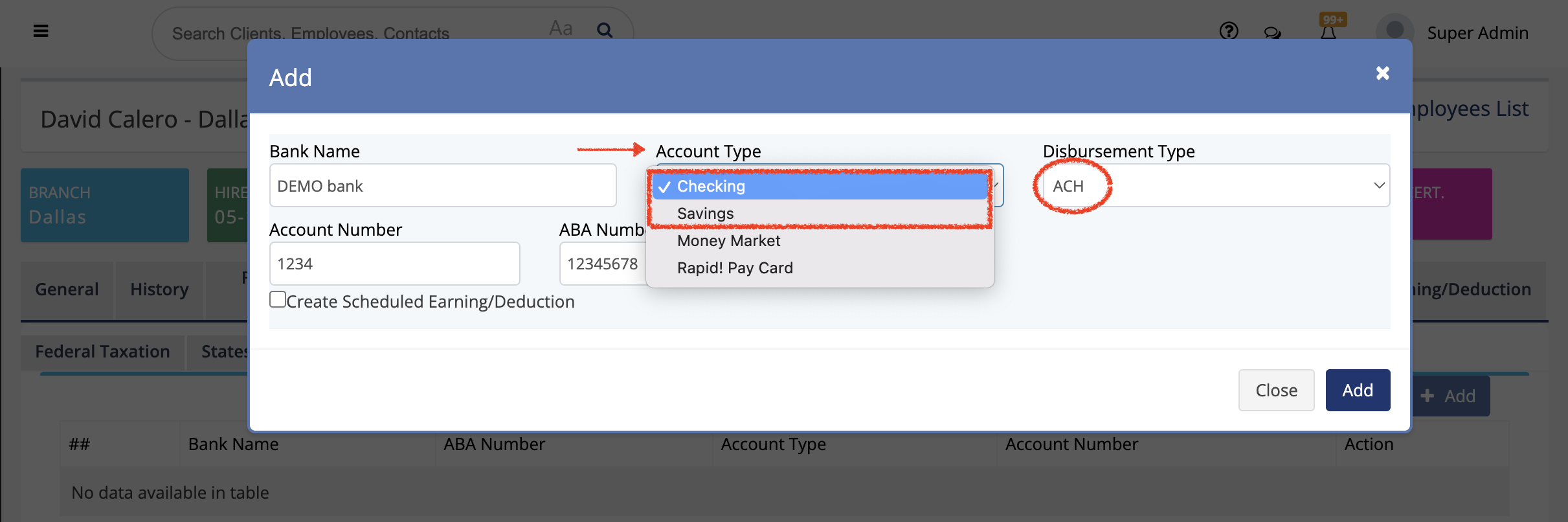
- When you click on the [+ add] button a window will pop up.
- In here enter the employee's bank information, making sure that 'Account Type has either "Checkings" or "Savings" selected, and under 'Disbursement Type' will be set to "ACH".
- If you want to create scheduled Earning/Deduction, select the box on the side of the "create scheduled Earning/Deduction" text and more options will appear.
- In here you can set an earning/deduction for this employee in specific.
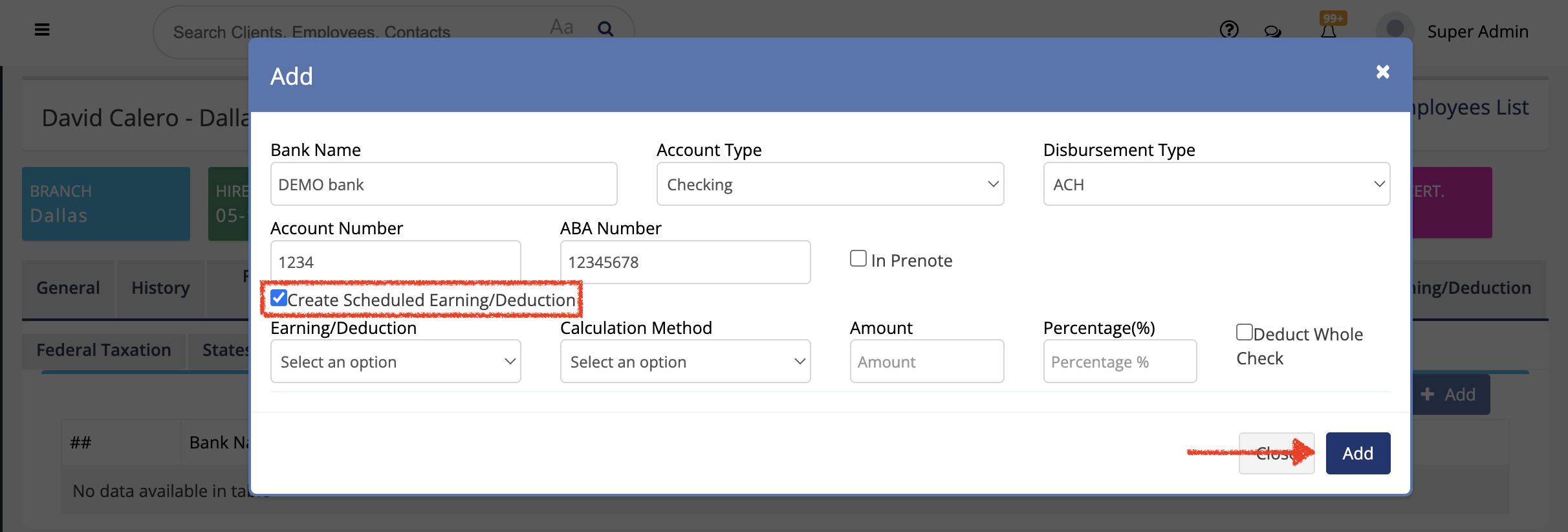
- Check that all the information that you set is correct and click on the blue [Add] button.
Related to