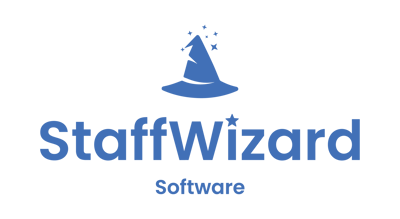
1. Navigate to Master Company Settings
-
On the left-hand side menu of your instance, select Master Company Settings.
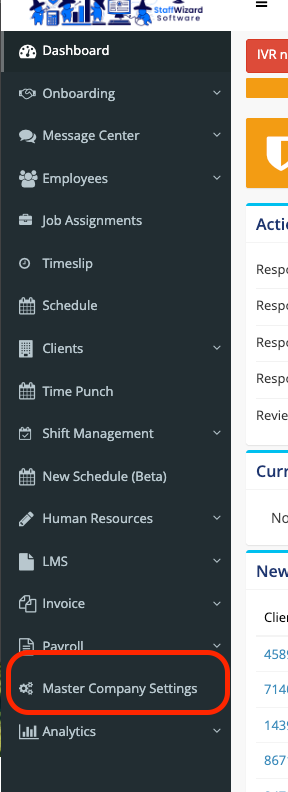
2. Open Report Settings
-
Under Master Controls, locate and click on Report Settings.
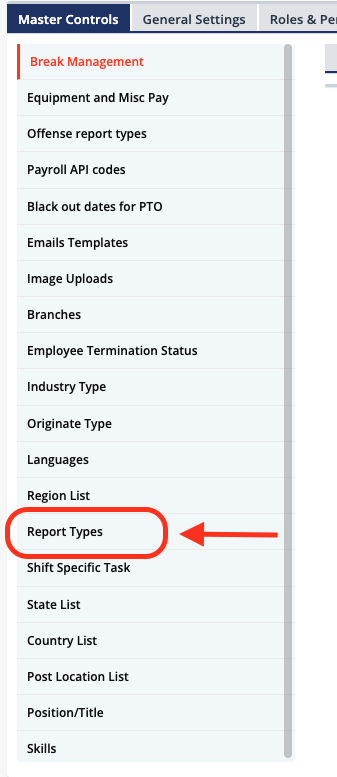
3. Access Report Types
-
Within Report Settings, click on Report Types.
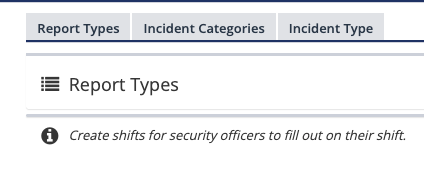
4. Set Default Report Types
-
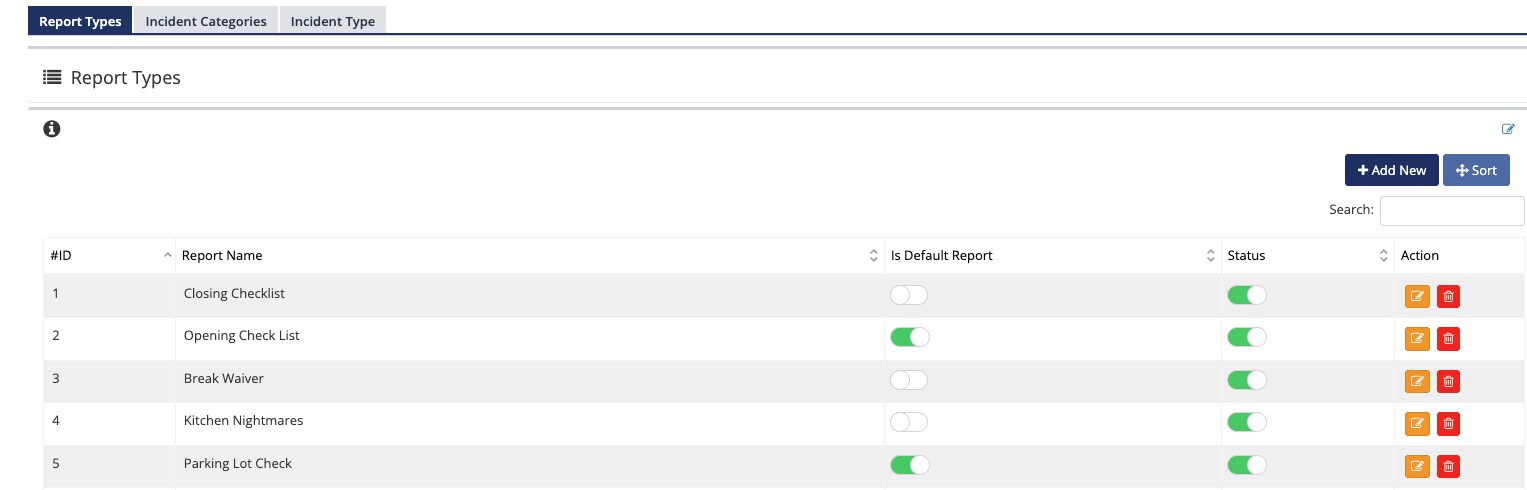
Choose the reports you want to set as default.
-
Click on the "Default" option for each selected report.
-
Make sure each report’s Status is set to:
-
Default
-
Active
-
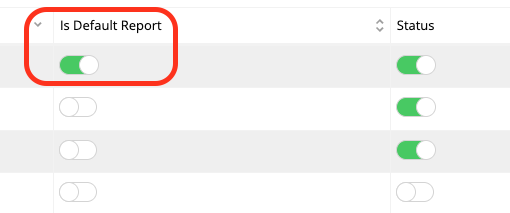
Common Reports to Set as Default:
-
Daily Activity Report (DAR)
-
Incident Report
-
Break Waiver
-
Any custom reports created by your team
5. Verify in Employee Profiles
-
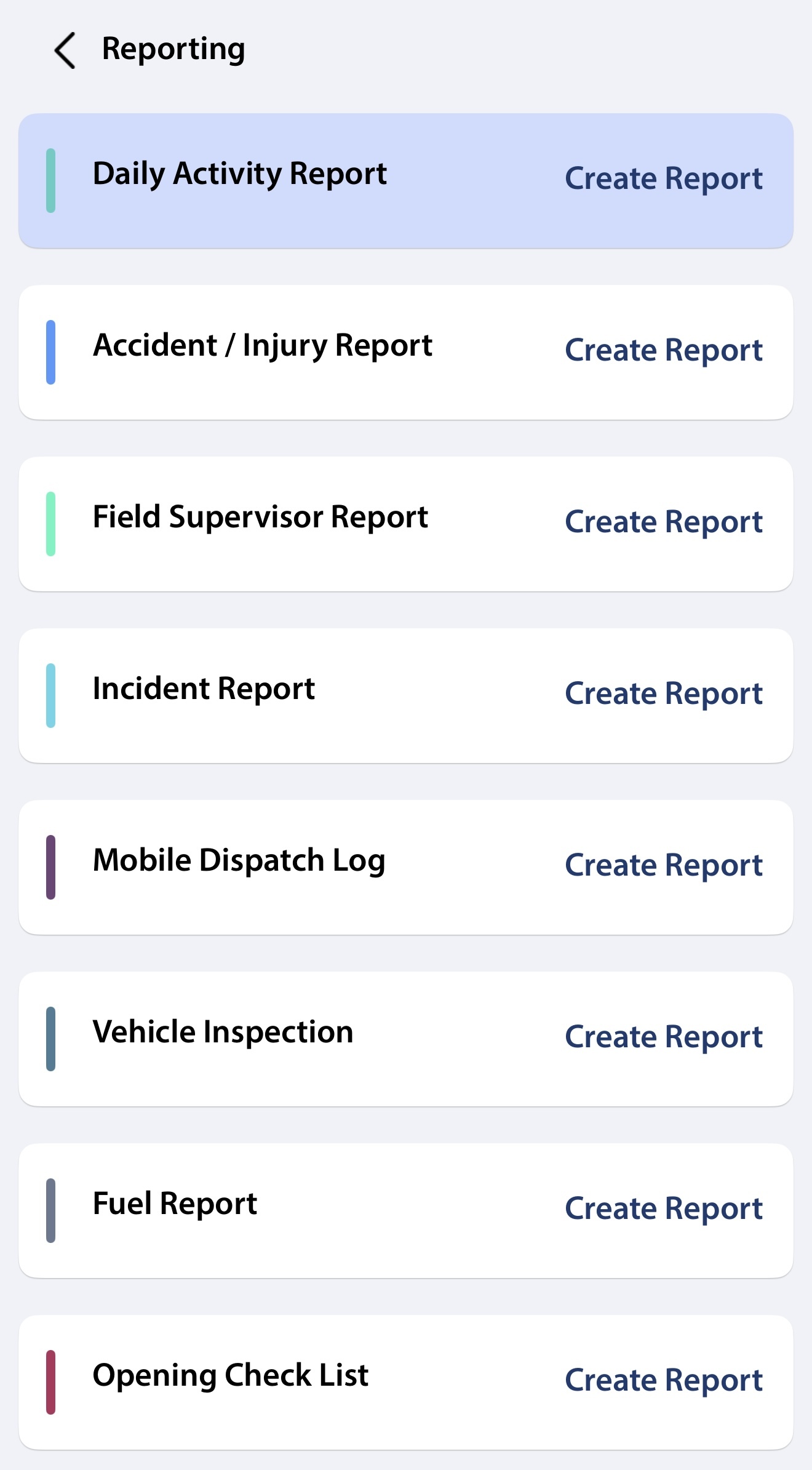
Log in to an employee profile on the mobile app (or a test profile).
-
Check the Reports section in the mobile app.
-
Ensure the selected reports appear correctly.
Related to