By default, the address entered in the client profile under the 'General' tab on the StaffWizard Page will be the address that populated on the invoices.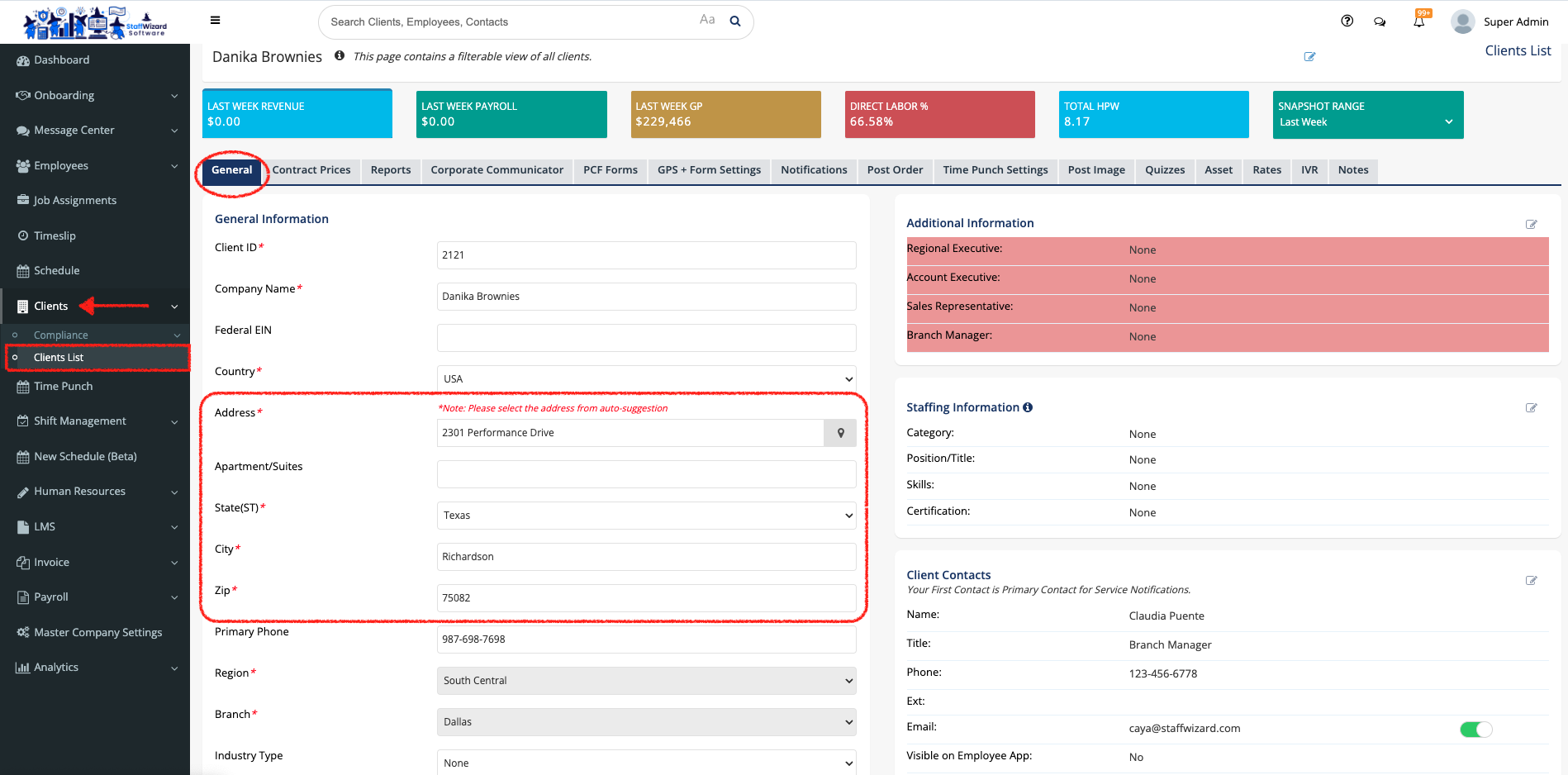
If you need an invoice to a different address, these are the steps to follow to have an alternative address:
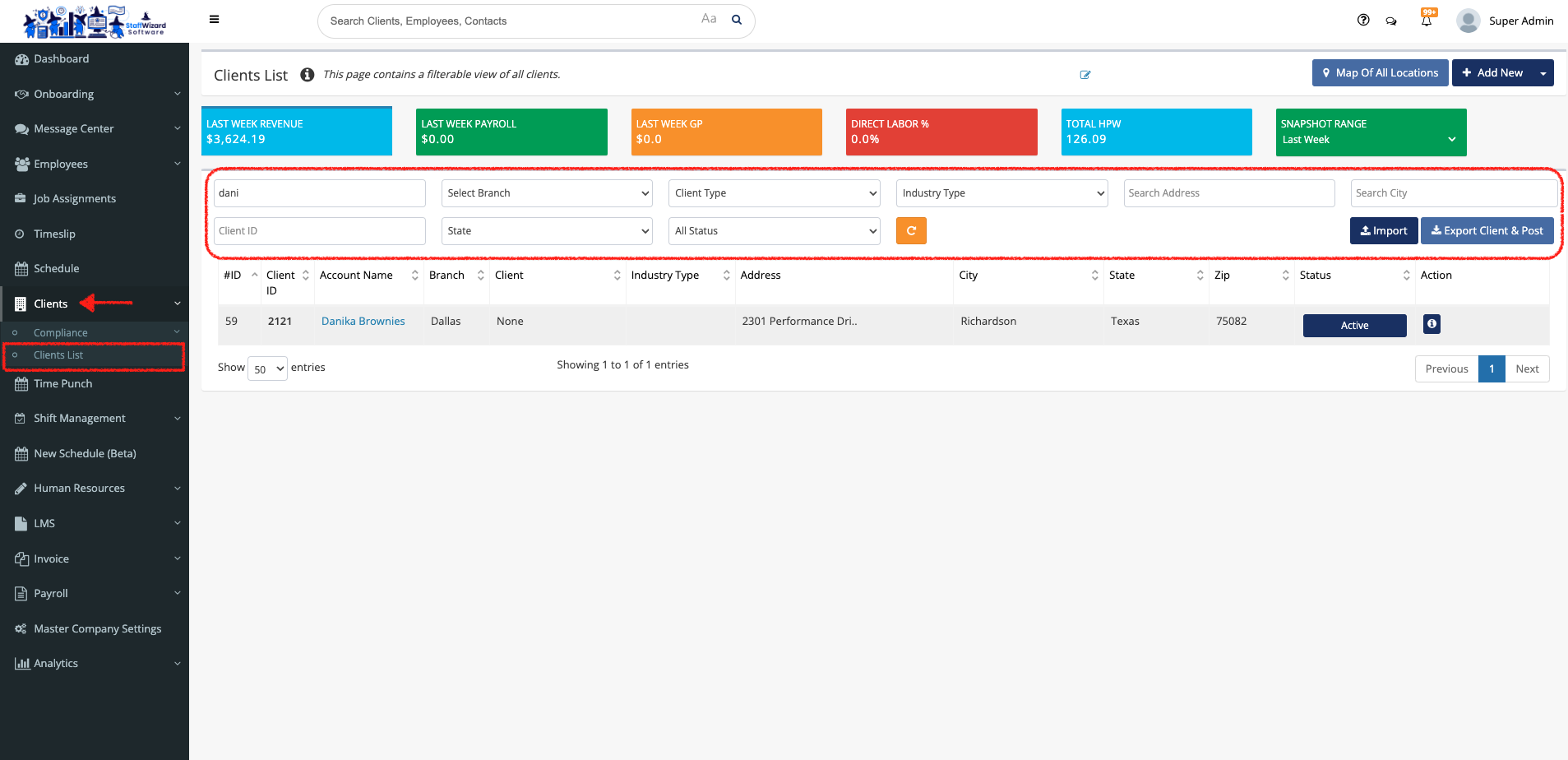
- Go to the 'Clients' tab on the main menu on the left-hand side of the StaffWizard page, and select the "Clients List" option. Then select the client that you need by using the filters or navigating the list.
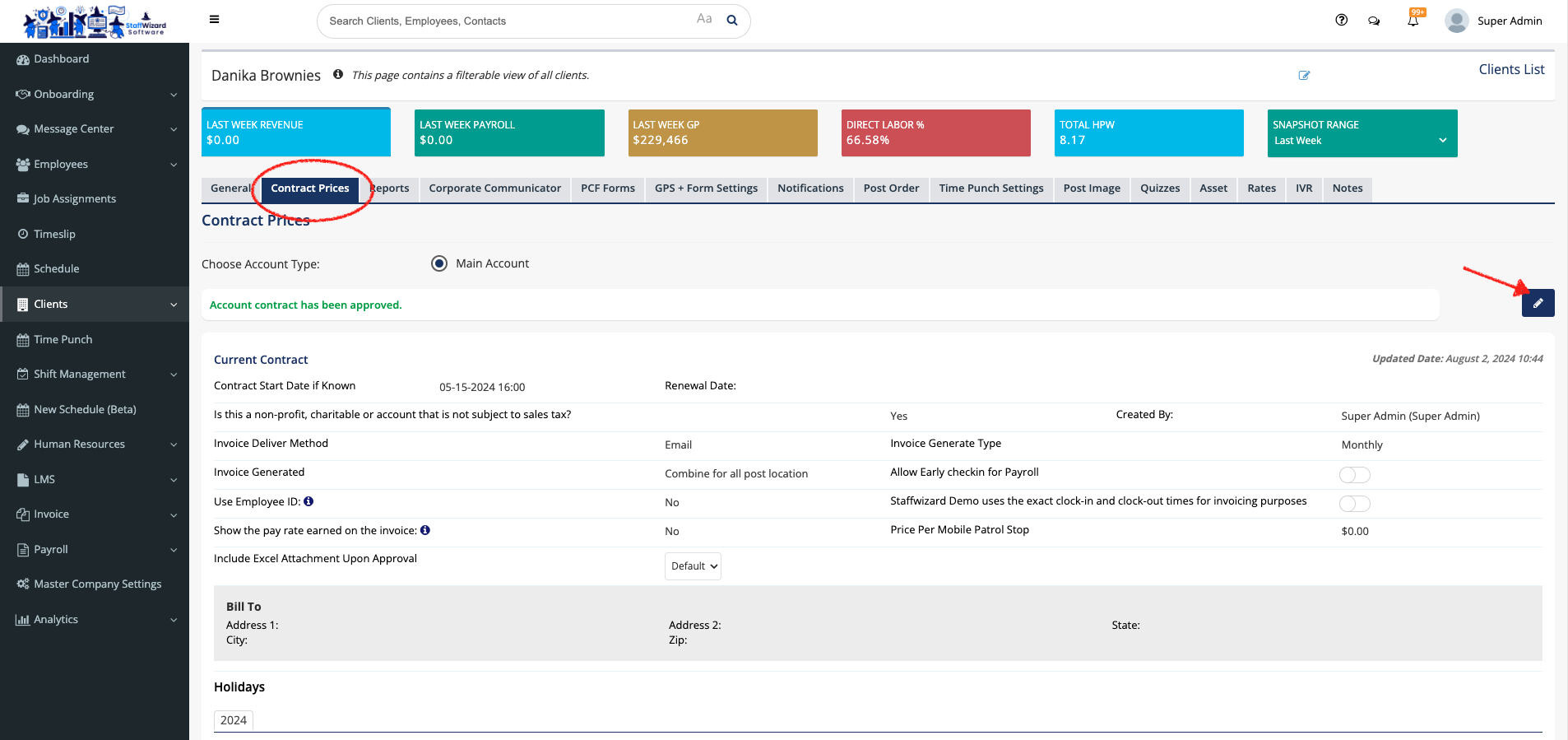
- On the client's profile, go to the 'Contract Prices' tab located at the top of the client´s profile. Once the new page displays, locate the [Blue Pencil] button on the right-hand side of the panel to edit the information, this action will scroll down the panel automatically.
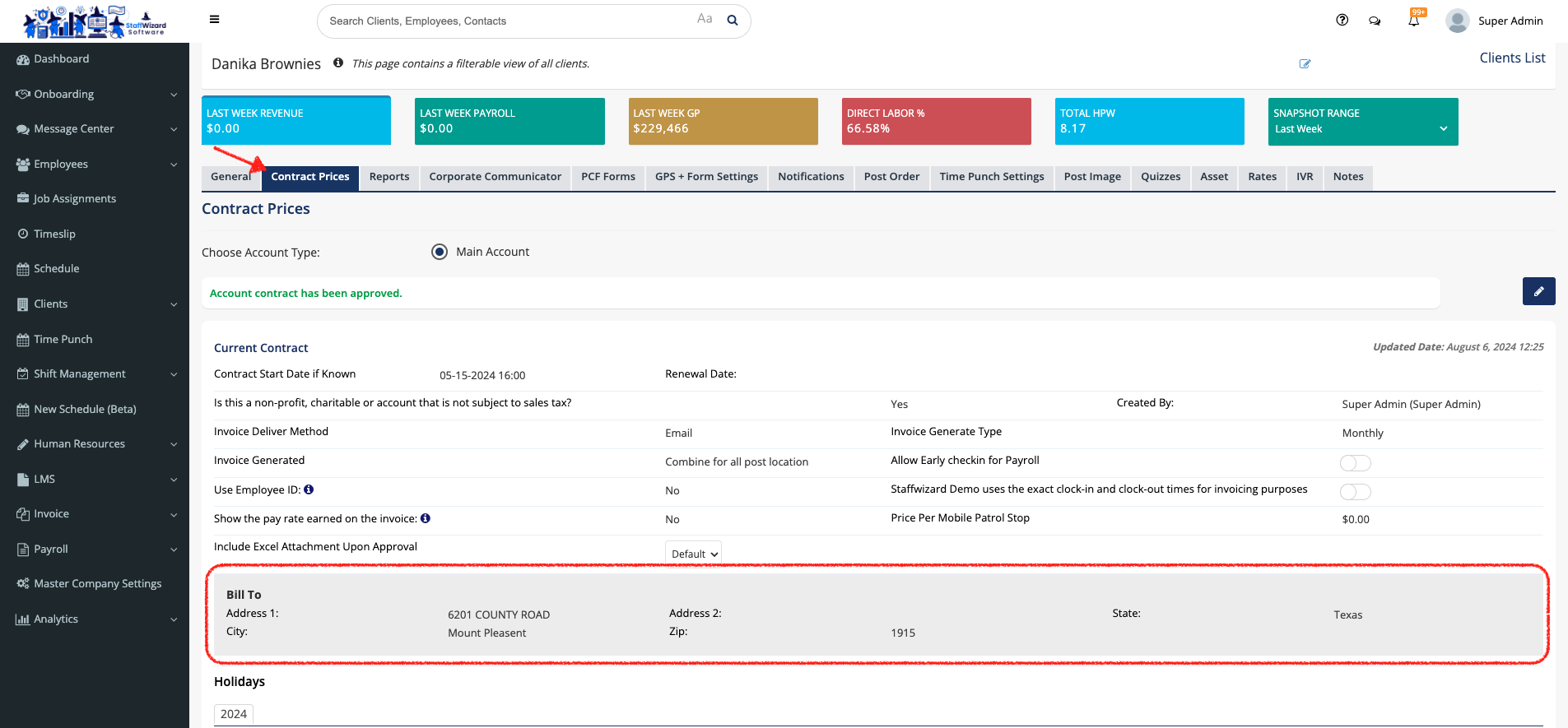
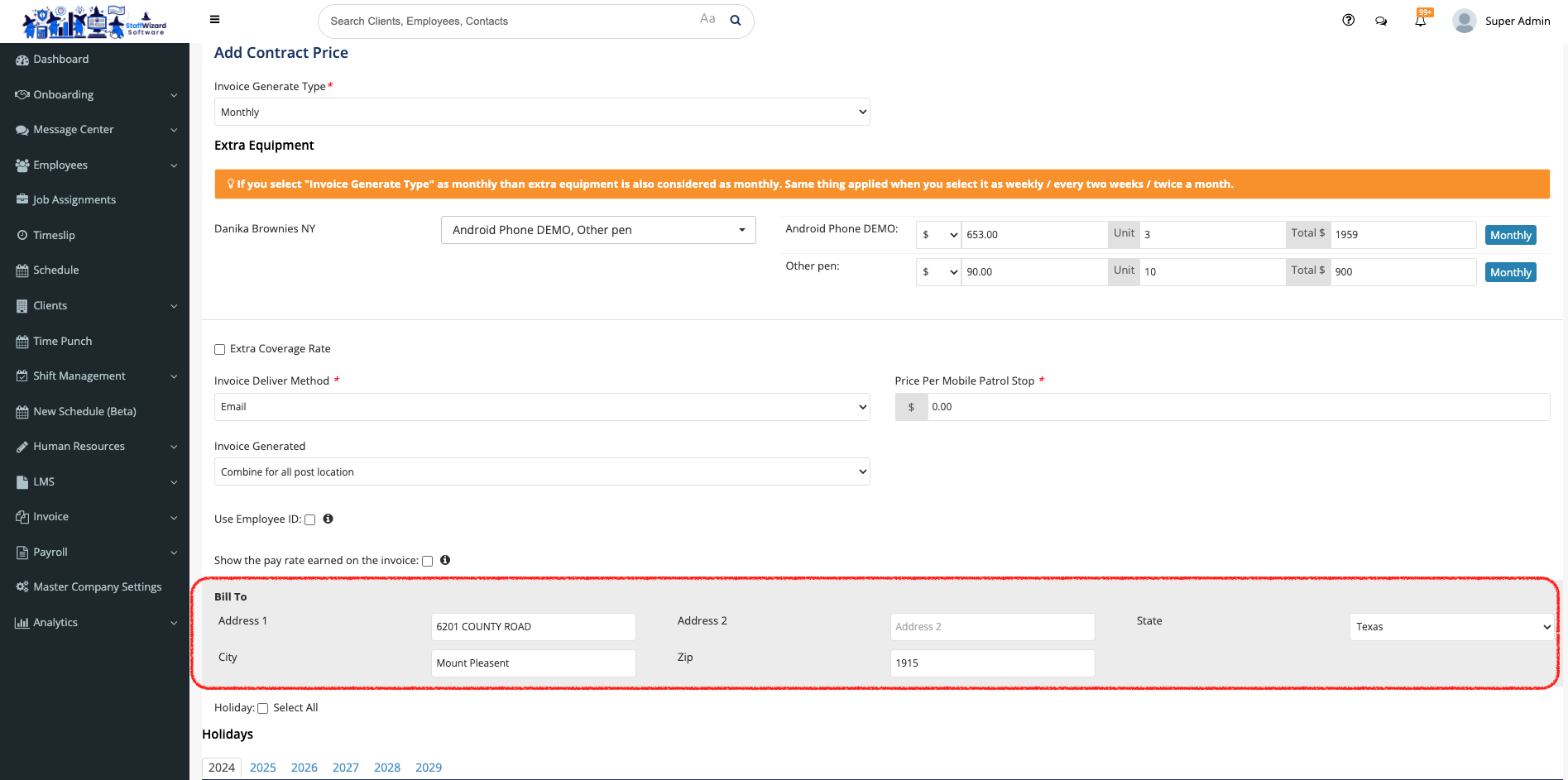
- Locate the "Bill To" section, and in here you can add an alternative address for the invoices.
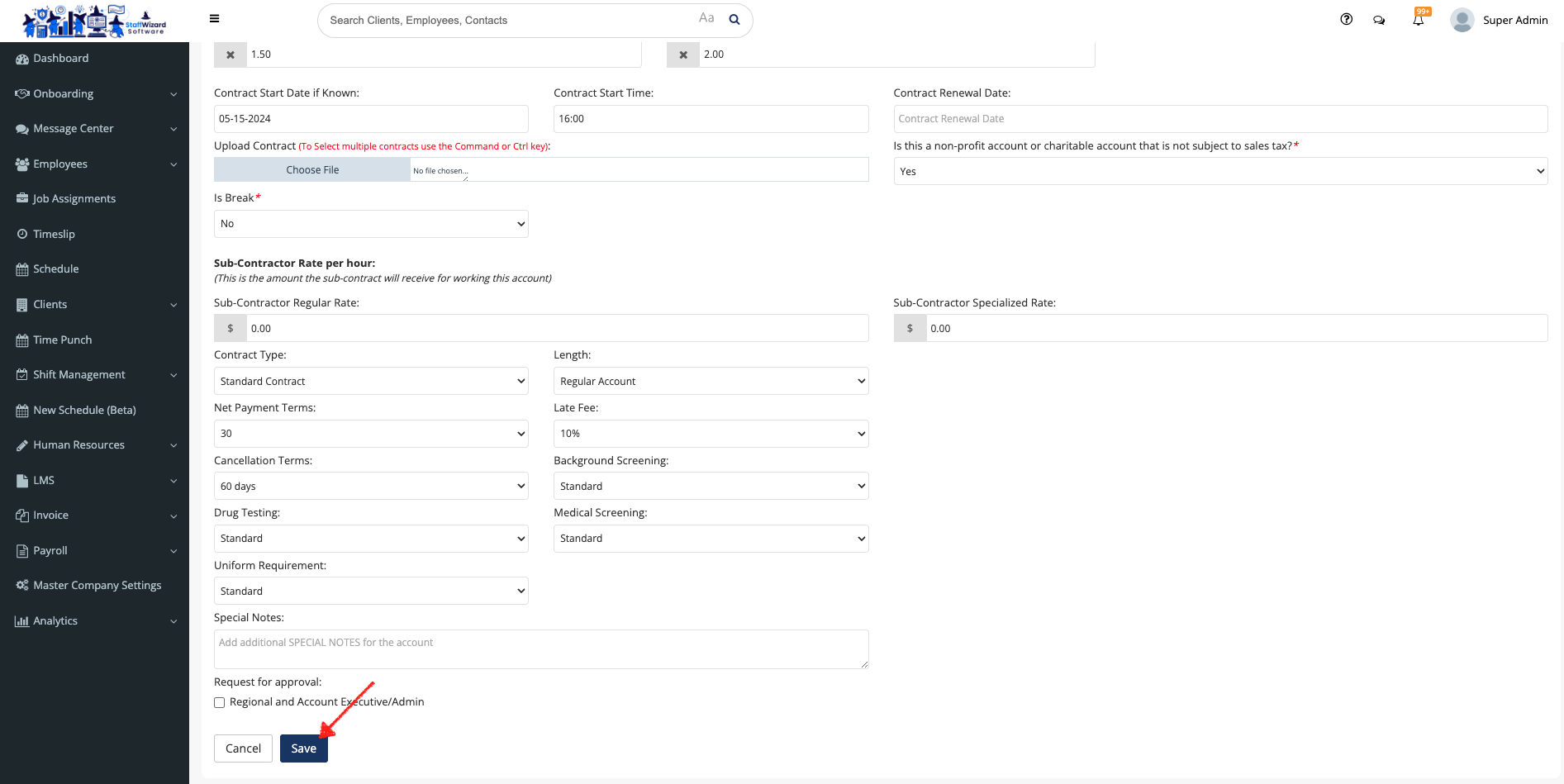
- After checking that the information is correct, you can save the changes by clicking the [Save] button at the end of the panel.
- Once the information is saved, the alternative address will appear on the main information of the 'Contract Prices' tab.