
How to Take a Quiz on the Mobile App
1. Log In
Open the mobile app and log in using your credentials.
2. Access the Menu
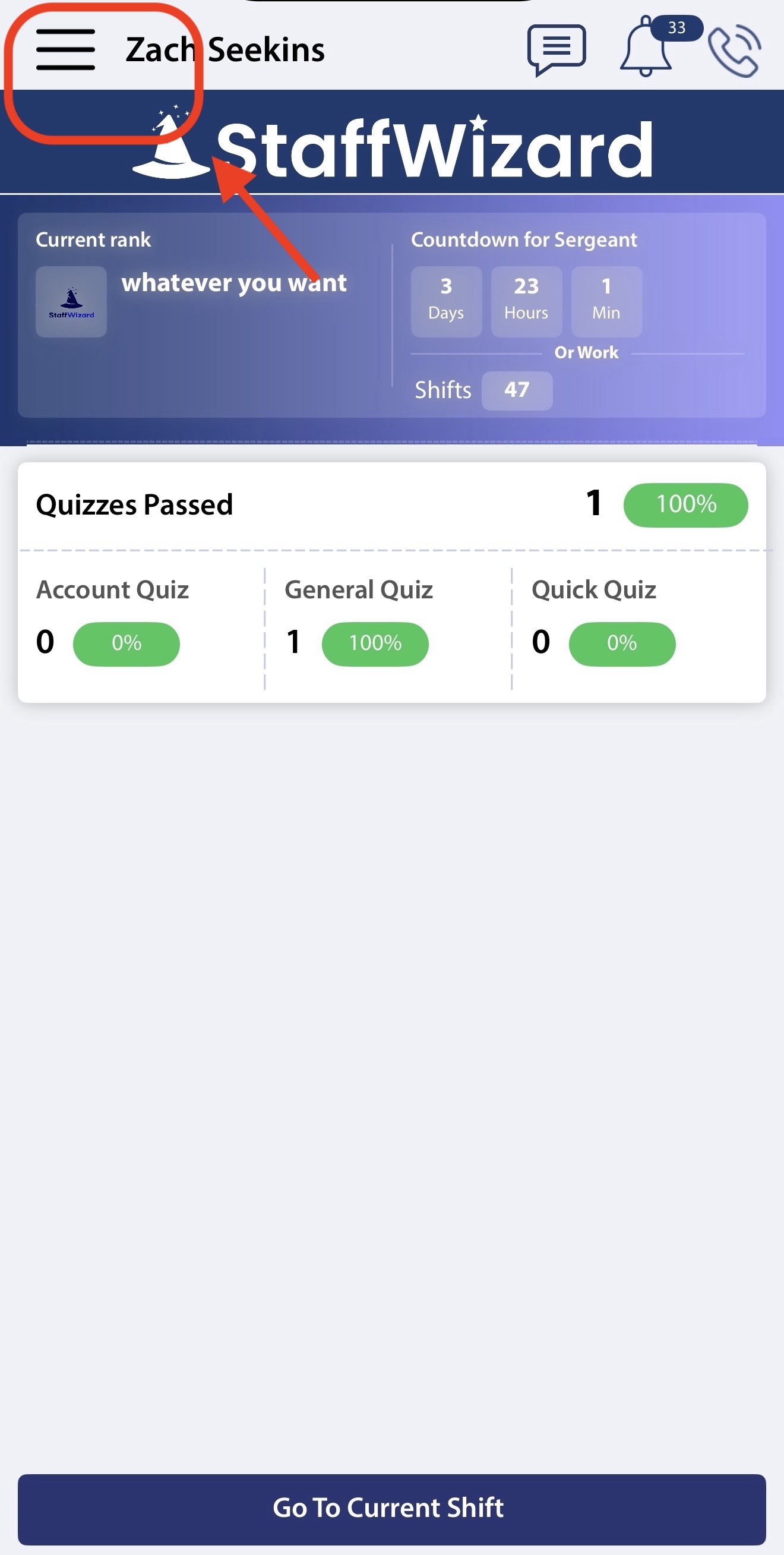
Tap the menu icon (typically located in the top-left corner) to open the sidebar navigation.
3. Navigate to the LMS
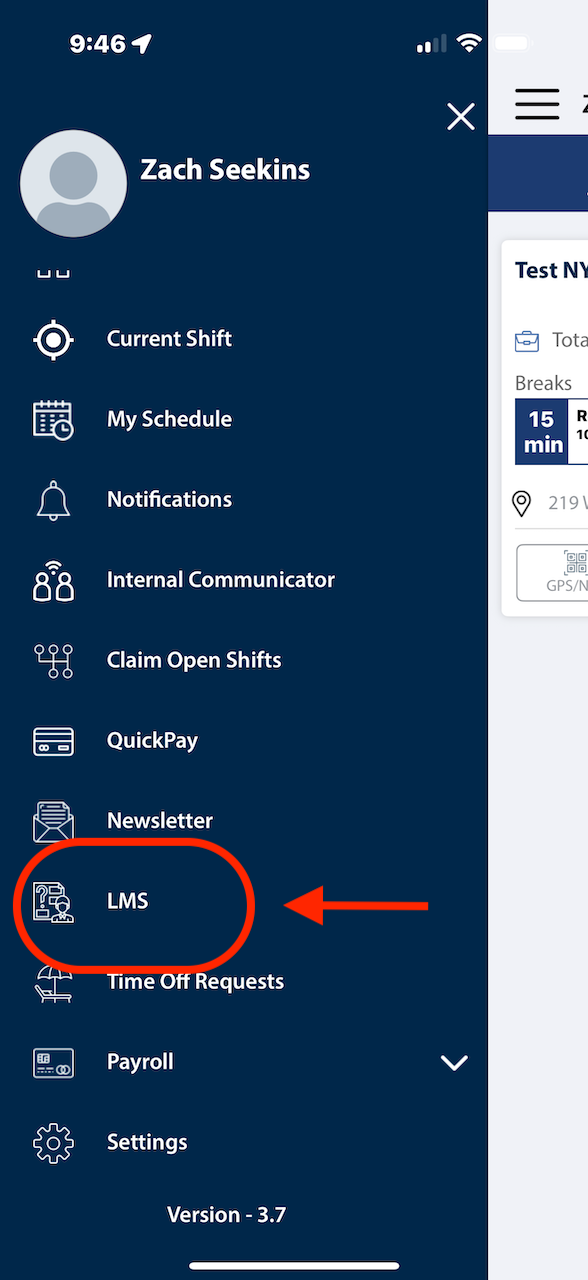
From the menu, select LMS (Learning Module System) to access available learning content.
4. Select a Quiz
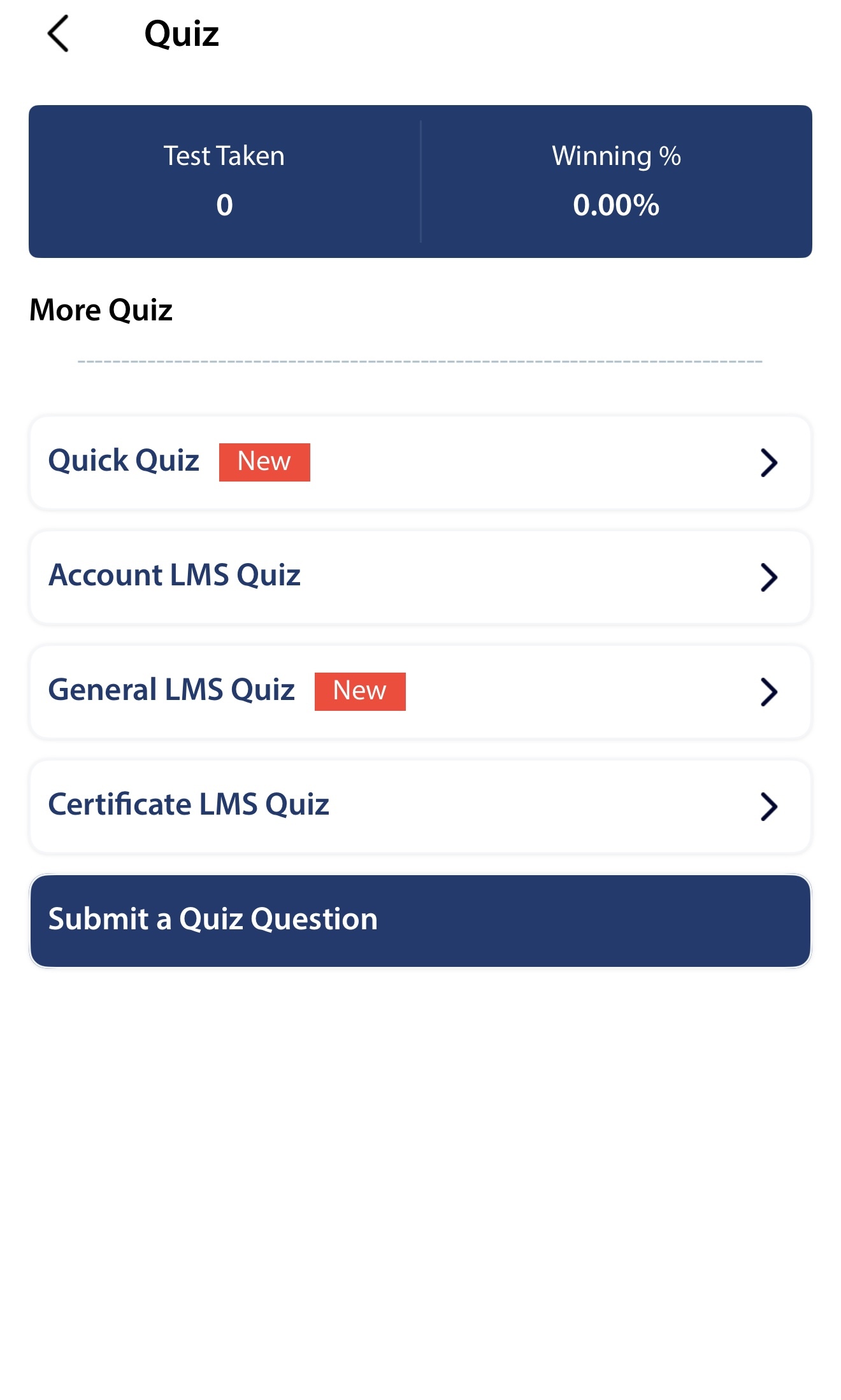
Browse and choose the quiz you wish to take. Examples include:
-
Quick Quiz
-
Account Quiz
-
General Quiz
-
Certification Quiz
-
Or any other available option
5. Start the Quiz
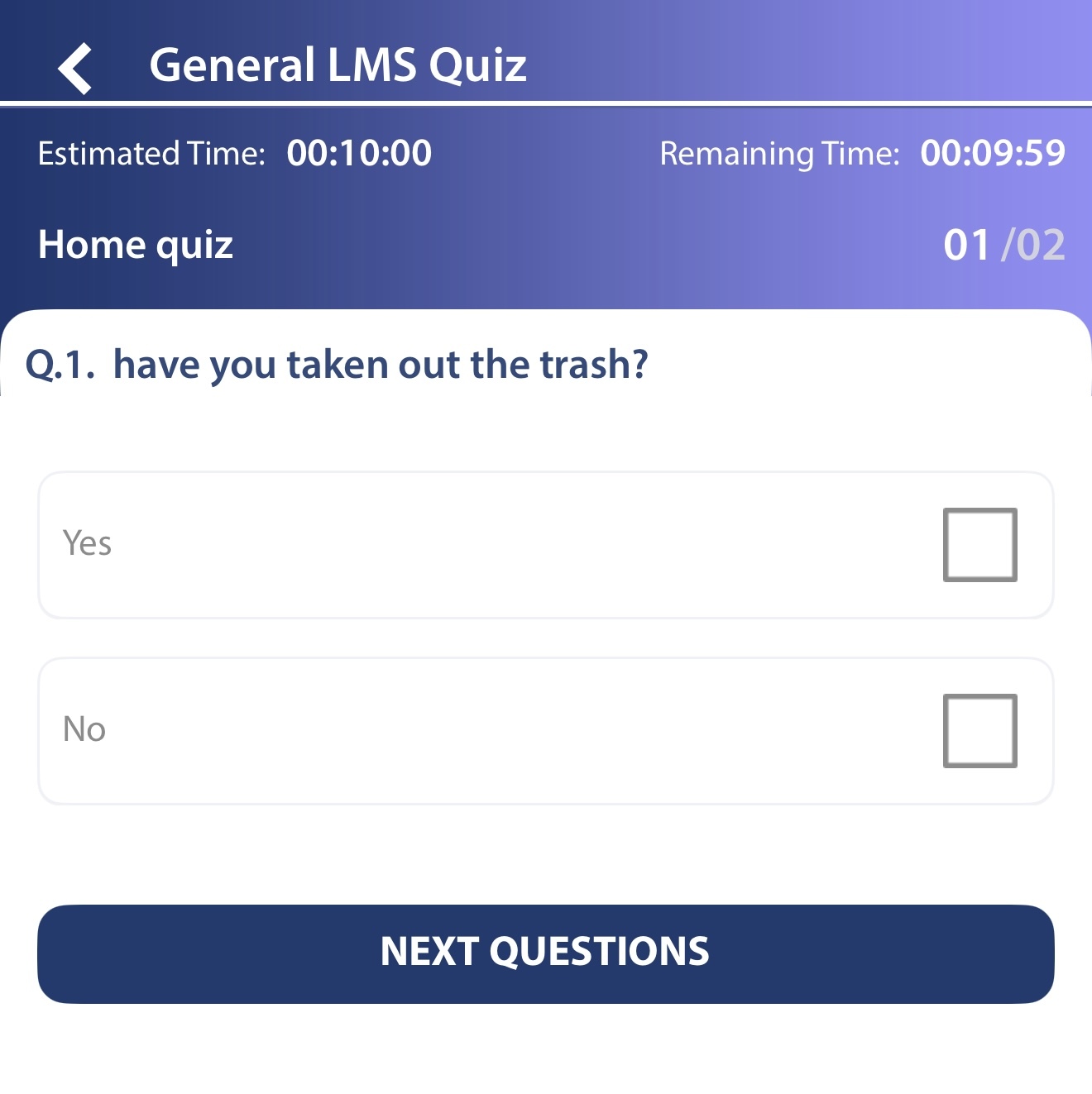
Tap on the selected quiz, follow the on-screen instructions, and complete all questions.
6. Complete the Quiz and View Results
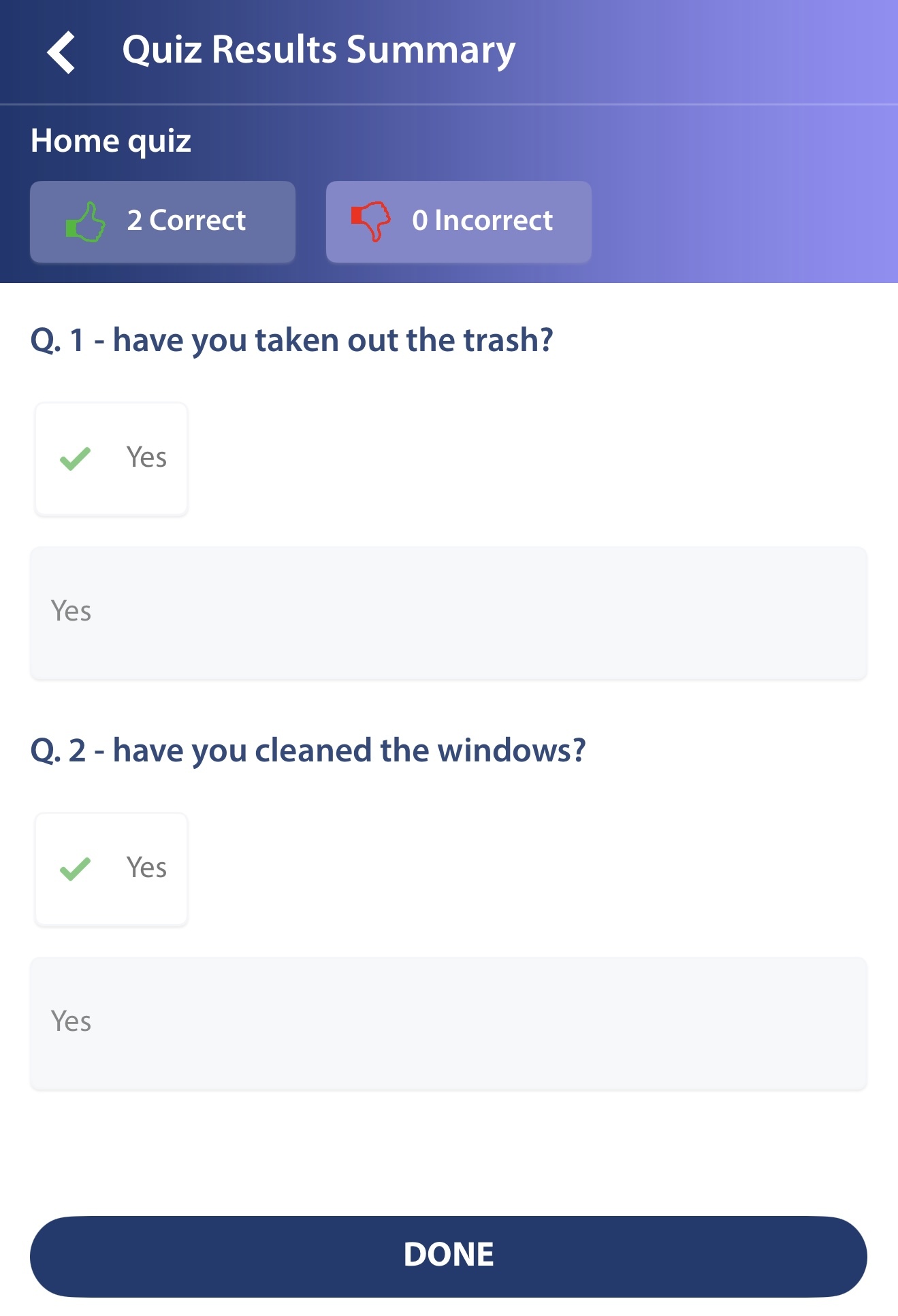
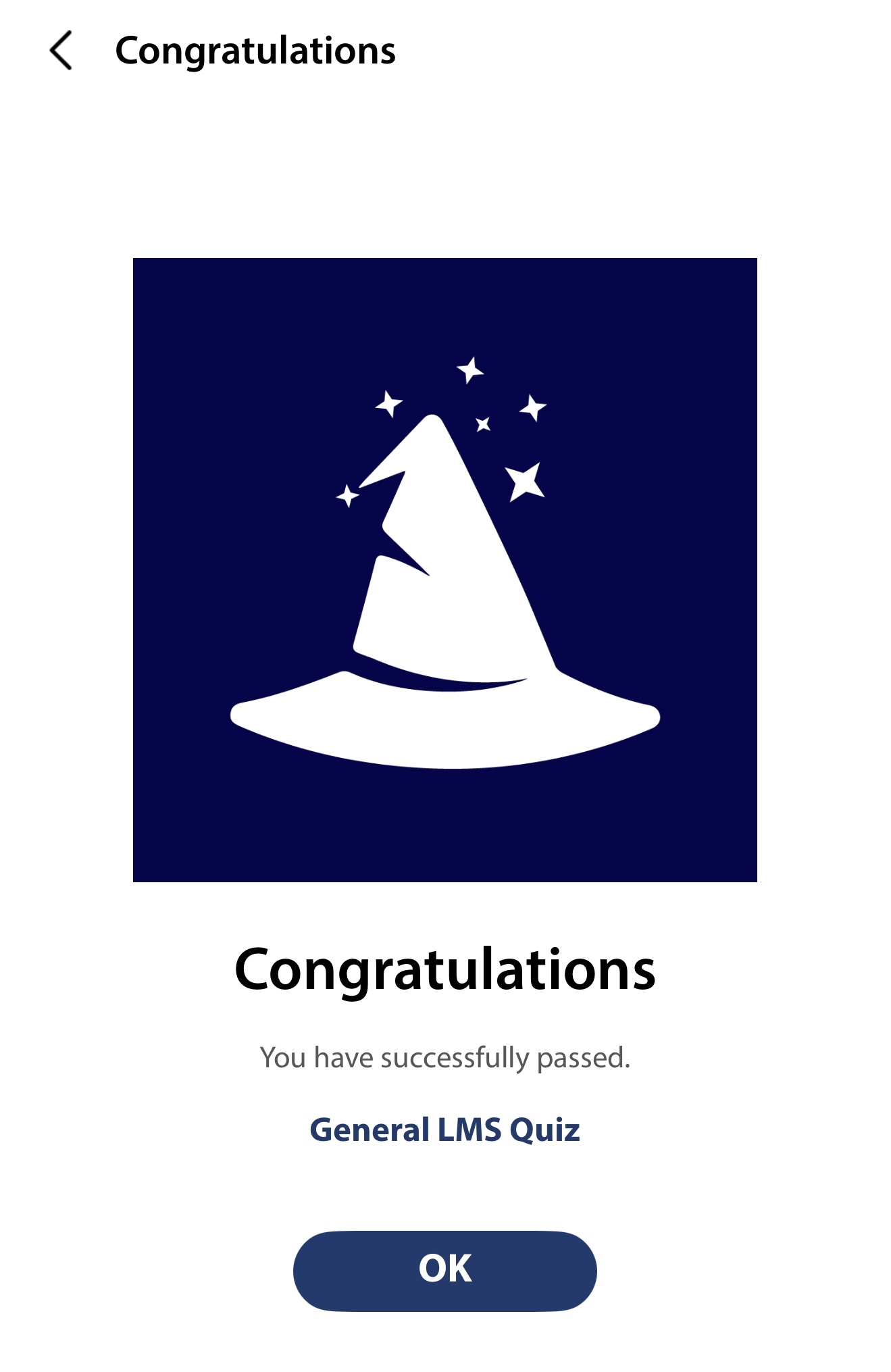
After finishing, you will immediately see whether you passed or failed. If necessary, you will be given the option to retake the quiz.
7. View Quiz History
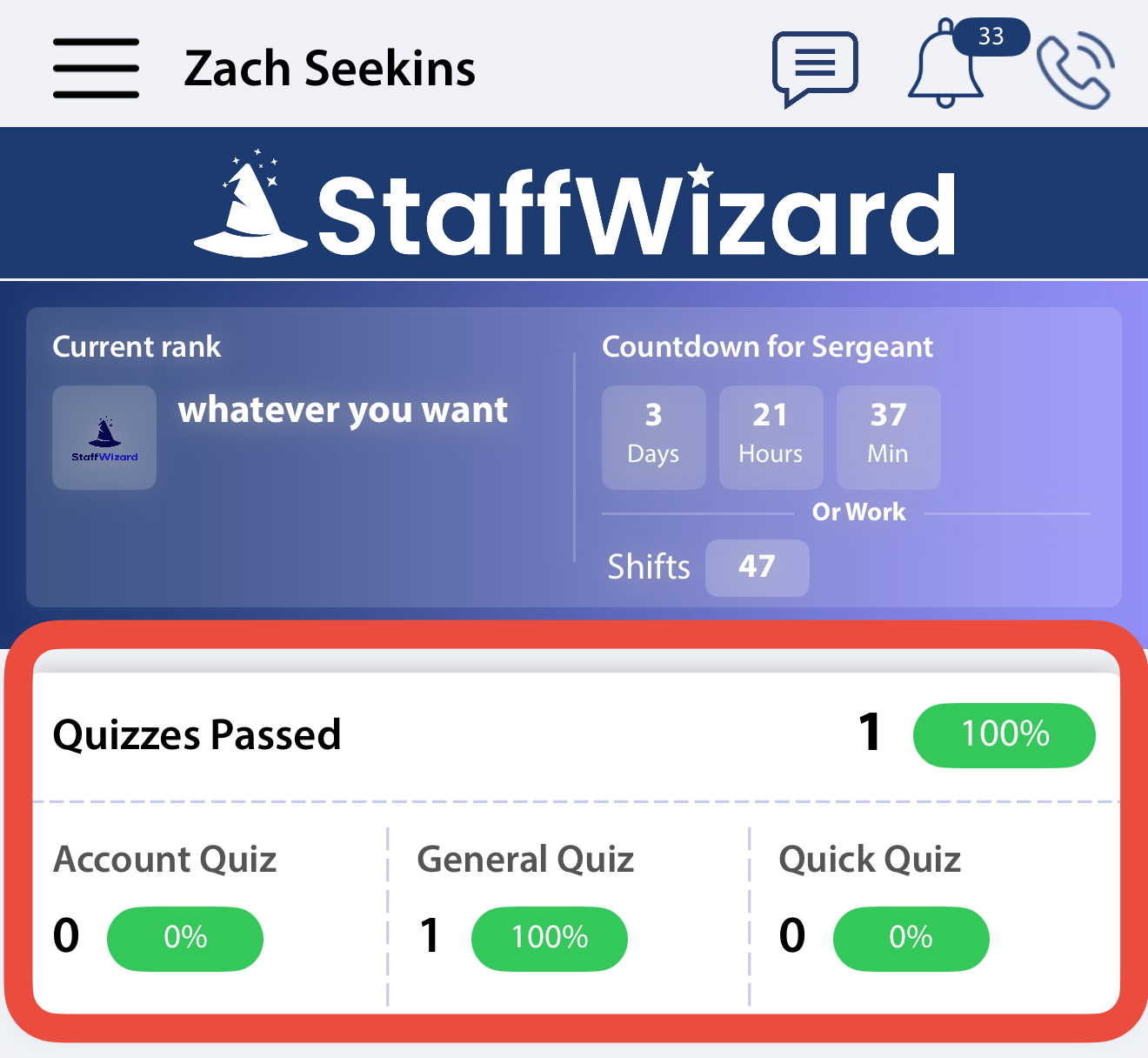
On the main page of the LMS, you can view a record of all quizzes taken along with their results.
Related to