How to send out a mass message that is scheduled to be sent out. Begin by navigating to the left-hand panel and clicking on ‘Message Center.’ A dropdown menu will appear—select ‘Message Center’ from the list.
On the new page, click on ‘Mass + Pre-Scheduled’ and then choose “Pre-Scheduled”.
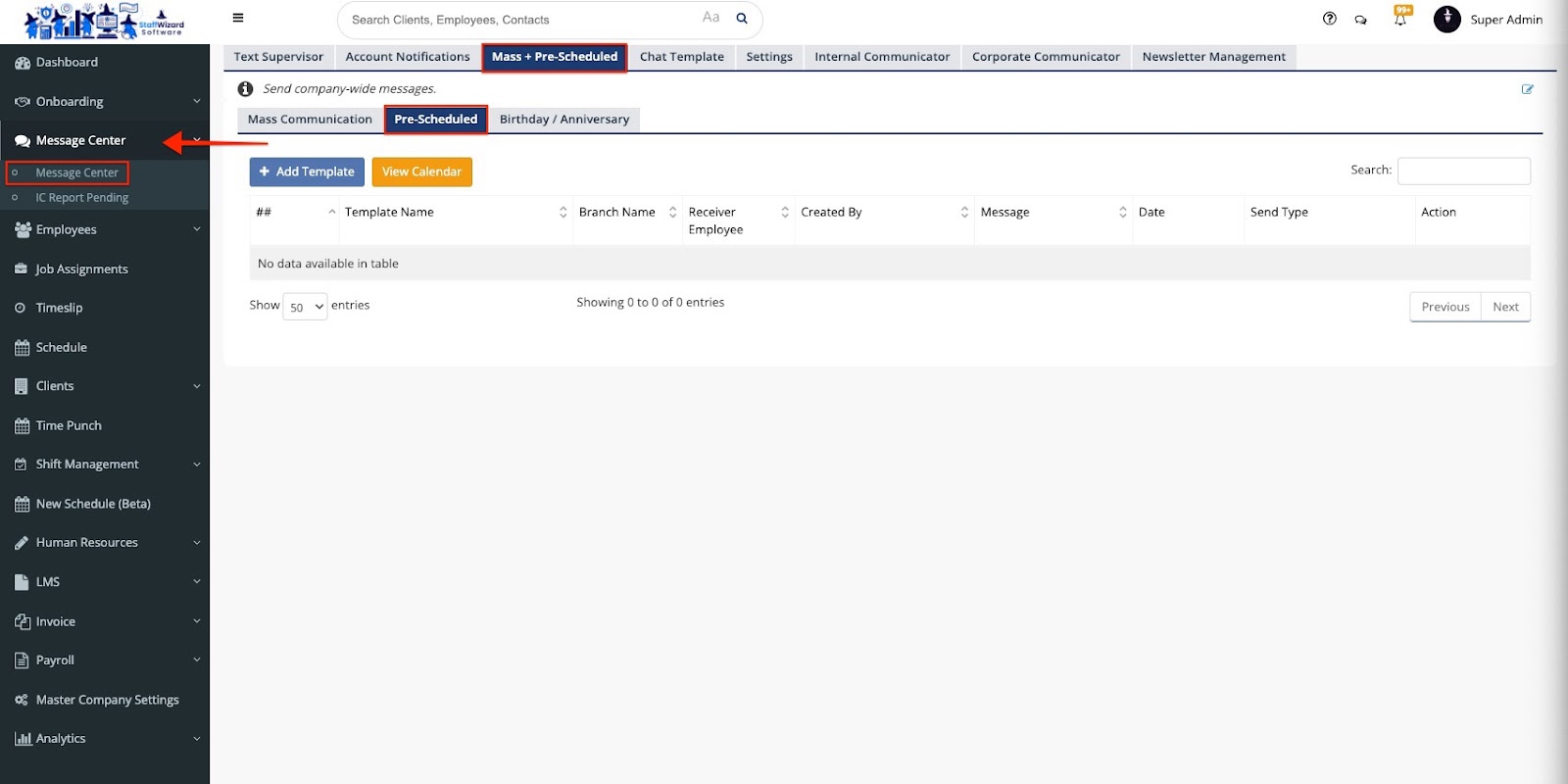
To create a new template, click the blue [+Add Template] button. A new window will appear with the following fields:
-
Template Name: Enter the name for your message template.
-
Image URL: Use this field to attach an image.
-
Video URL: Use this field to attach a video.
-
Description: This is where you’ll build the content of the message that will be sent to notify your employees or guards.
-
Send Type: Choose how frequently you would like the message to be sent. Options include ‘Every Year,’ ‘Every Month,’ and ‘Every Week.’
-
Date: Select the date when the message will be sent.
-
Time: Set the time for the message to be sent.
Under the “Template Name” field, you can select the recipients for the message, with the following options: “Officers,” “Staff,” “Police Officers,” “Sub-contractors,” or “All.”
Click the blue [Save] button to save your template.

The template will now live on the initial page
Related to